
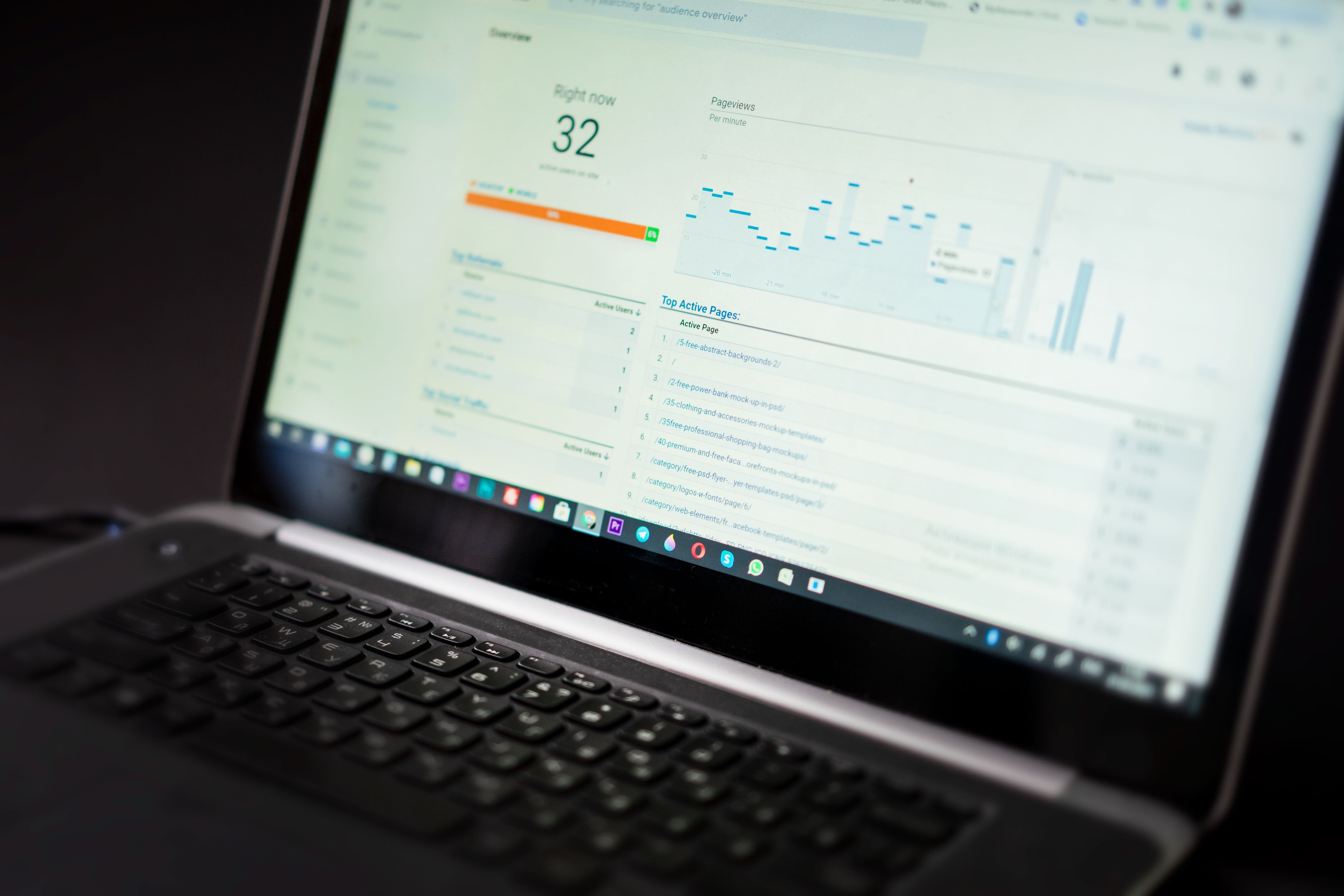
Adding WordPress to Google Search Console is one of the most useful early steps in WordPress SEO setup. It helps you understand how Google discovers, crawls, and indexes your site, while also giving you a place to check sitemaps, page coverage, manual actions, and performance data.
This guide explains the setup process in a practical way for bloggers, businesses, ecommerce sites, publishers, and developers. It also shows how Search Console fits alongside on-page SEO, technical SEO, plugins such as Yoast SEO and Rank Math, and wider site maintenance.
What Google Search Console does for a WordPress site
Google Search Console is a free tool from Google that helps website owners monitor search visibility and technical issues. It does not replace good content, internal linking, or a well-structured WordPress site, but it does provide insight into whether Google can find and understand your pages.
In simple terms, crawling means Googlebot can request your pages, while indexing means Google may store those pages in its index so they can appear in search results. A page can be crawlable without being indexed, and it can be indexed without ranking well. That is why Search Console is useful: it helps you separate discovery, crawlability, and indexing from assumptions.
For WordPress sites, this is especially helpful after a launch, redesign, permalink change, plugin migration, or website migration. It can also highlight issues with canonical URLs, redirects, XML sitemaps, robots directives, or pages that are difficult for search engines to reach.
Add WordPress to Google Search Console: step-by-step setup
Before you begin, make sure your WordPress site is live, using the correct domain version, and not accidentally blocked from indexing. Check whether your site is on HTTP or HTTPS, and whether you want Google to treat the www or non-www version as the main version. Consistency matters more than choosing one format at random.
Next, sign in to Google Search Console and add your website. Google usually offers more than one verification method, and the right option depends on how your site is managed. Domain verification is often the most complete choice because it can cover all subdomains and protocol variants, while URL-prefix verification can be useful in specific setups.
Verification may involve DNS changes, uploading a file, adding a meta tag, or using another supported method. If you use an SEO plugin such as Yoast SEO, Rank Math, All in One SEO, or SEOPress, check its current interface and documentation before relying on a verification field. Plugin menus and labels can change over time, and not every website needs the same setup.
After verification, submit your XML sitemap if your site has one. WordPress core, your theme, or an SEO plugin may generate it. A sitemap helps Google discover preferred URLs, but it does not guarantee indexing. Include useful, canonical pages only, and avoid submitting staging URLs, redirects, noindex pages, or duplicate parameterised URLs without a clear reason.
Check WordPress SEO settings before you submit
It is worth reviewing key WordPress SEO settings first, because Search Console reflects the technical choices already present on your site. Confirm that important pages are not set to noindex, that robots.txt is not blocking essential sections, and that canonical tags point to the preferred version of each page.
If you are using an SEO plugin, remember that it should support your workflow rather than control it blindly. Most websites only need one primary SEO plugin. Running multiple full SEO plugins can create duplicate metadata, conflicting canonical tags, duplicated schema, or sitemap issues. Choose the tool that fits your team, budget, and technical needs, then configure it carefully.
On-page SEO still matters here. Title tags should describe the page clearly and reflect search intent. Meta descriptions help with snippet quality, but they do not directly guarantee rankings. Descriptive headings, natural internal links, and accurate image alternative text all support better content understanding. If you want a practical foundation for broader site growth, a free website SEO audit can help you spot technical and content issues before they become harder to manage.
Use Search Console reports to guide technical SEO work
Once Search Console is connected, look at the reports that matter most for WordPress SEO: page indexing, sitemaps, links, and performance data. The interface can change, but the overall purpose stays the same: help you understand how Google sees your site.
If a page is discovered but not indexed, check for common causes such as weak internal linking, duplicate content, noindex directives, canonical conflicts, server errors, thin content, or a page that does not add clear value. Do not assume that submitting a URL repeatedly will force inclusion. The URL Inspection tool can be useful for diagnosis, but it does not promise indexing.
For technical SEO, also review redirects, broken links, and canonical consistency after edits. Permanent redirects are appropriate when a page has moved for good; temporary redirects are better for short-term changes. Avoid redirect chains and mass redirection to the homepage, especially on ecommerce sites or during redesigns.
If your WordPress setup includes performance plugins, page builders, or heavy scripts, test carefully before making broad changes. Core Web Vitals such as Largest Contentful Paint, Interaction to Next Paint, and Cumulative Layout Shift are about real user experience, not just a plugin score. WordPress speed depends on hosting, caching, images, CSS, JavaScript, fonts, and theme behaviour as well as SEO settings.
How this fits with content, plugins, and site structure
Search Console works best when the rest of your WordPress SEO foundations are sound. Content should be written for a clear purpose, with keyword research used to understand intent rather than to stuff the same phrase into every heading. Internal links help users and crawlers find related posts, products, or service pages, especially where orphan pages may otherwise be overlooked.
For ecommerce sites, product pages and category pages often serve different intents. Product schema, descriptive copy, image optimisation, and sensible faceted navigation can all help search engines interpret the page structure. For local businesses, consistency across contact details, location pages, and business information is important. For multilingual websites, language targeting, translated content quality, and correct hreflang and canonical use need to be checked together.
Search Console is also useful during migrations. Whether you are changing themes, moving to HTTPS, altering permalinks, or redesigning a site, create a backup, map old URLs to relevant new ones, update internal links, verify sitemaps, and monitor indexing and coverage after launch. WordPress security matters too, because hacked pages, spam injections, and unauthorised redirects can damage trust and create technical noise that is hard to diagnose later.
If your SEO work includes broader authority-building, it helps to keep content, links, and technical checks aligned. Resources such as a practical backlink building guide can support your wider strategy, but they should sit alongside solid on-site optimisation rather than replace it.
Common mistakes and a simple troubleshooting checklist
Some of the most common mistakes are avoidable. Do not verify the wrong domain version and then wonder why data looks incomplete. Do not leave staging-site blocks active on the live site. Do not submit every archive, filter, or tag page automatically just because a plugin exposes it.
A simple troubleshooting approach is to check the page source, the visible page, and the Search Console report together. Confirm the page is internally linked, returns a normal 200 status, is not blocked by robots.txt, is not marked noindex, and has a sensible canonical URL. If you recently changed plugins, review titles, descriptions, schema, sitemaps, redirects, and social metadata after the migration.
For ongoing maintenance, treat plugin recommendations and SEO scores as guidance rather than proof of search success. A green score in an SEO plugin does not guarantee visibility. Real results depend on content quality, structure, crawlability, indexing signals, competition, and steady site maintenance.
Conclusion
Connecting WordPress to Google Search Console is a practical first step in managing SEO with more confidence. It helps you spot technical problems earlier, understand how search engines reach your site, and make more informed decisions about content, internal links, metadata, and site structure.
Used well, Search Console supports better WordPress SEO audits and cleaner site maintenance. It is most effective when paired with thoughtful content, careful plugin choices, sensible redirects, and regular checks of performance, indexing, and user experience.
Frequently Asked Questions
Do I need a plugin to add WordPress to Google Search Console?
No. You can verify a site in Search Console without a plugin. An SEO plugin may make some steps easier, but the best method depends on how your WordPress site is set up and who manages the technical work.
Will submitting my XML sitemap make Google index every page?
No. A sitemap helps Google discover URLs, but it does not guarantee indexing. The page still needs to be crawlable, useful, and free from technical blocks such as noindex tags or conflicting canonicals.
Should I use Yoast SEO, Rank Math, All in One SEO, or SEOPress for Search Console?
Any of these tools can help with parts of WordPress SEO, but one plugin is usually enough. Choose based on workflow, compatibility, maintenance, and the features you actually need, rather than installing several at once.
How often should I check Search Console?
There is no fixed rule, but checking it regularly is sensible, especially after major site changes, content updates, migrations, or technical fixes. The most useful habit is to review it often enough to catch issues before they build up.
- Sponsored Ad -





