
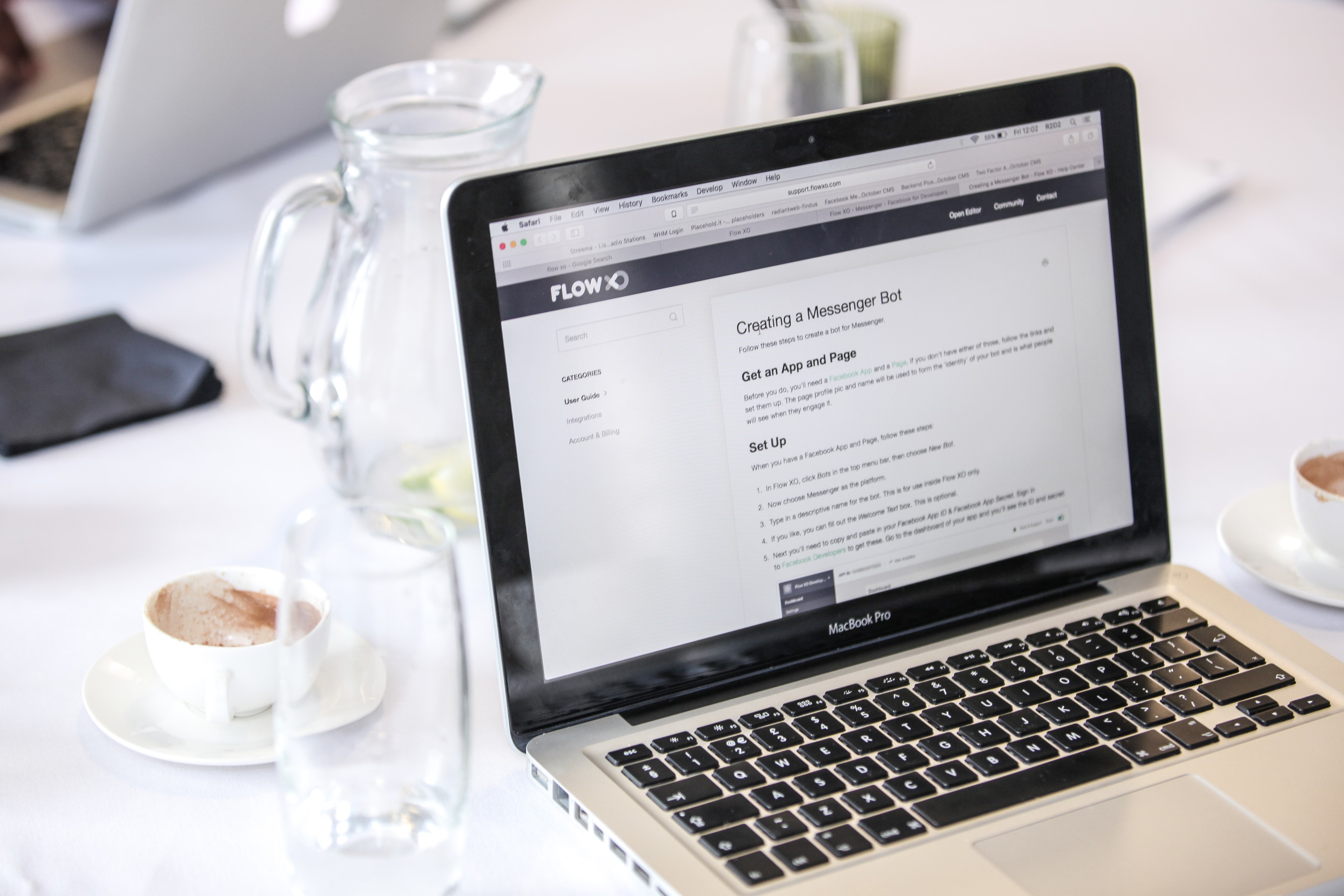
Hosting Migration Checklist: A Practical Guide for Safer Moves is most useful when you treat migration as a controlled project rather than a simple server swap. Whether you are moving a brochure site, a WordPress blog, or a busy WooCommerce store, the aim is to protect data, keep pages available, and avoid unnecessary performance regressions.
A good migration plan looks beyond the hosting plan itself. Server capacity, caching, database behaviour, image delivery, plugin load, DNS settings, and monitoring all affect the outcome. Changing hosts can help with speed or reliability, but only if the new environment suits the site’s real needs and the move is tested properly.
What a hosting migration should achieve
A hosting migration is the process of moving a website from one server or platform to another. That might mean switching from shared hosting to VPS hosting, moving to cloud hosting for more scalability, upgrading to managed hosting for less technical maintenance, or changing data centre location for operational reasons. The right choice depends on traffic, budget, control requirements, and how much technical work the team can handle.
The main goal is continuity. Pages should keep loading, forms should keep working, and email, DNS, SSL/TLS, and database connections should remain stable. For ecommerce sites, the checkout flow, customer accounts, and inventory updates matter just as much as the homepage. If those systems fail after a move, the cost is more than a temporary speed dip.
Hosting Migration Checklist: A Practical Guide for Safer Moves
Start with a full backup of files, databases, and configuration settings. Keep an independent copy off-site so you are not relying only on the existing host. A backup is only useful if it can be restored, so test it before the migration if possible.
Check what is actually being moved. Static files, databases, media libraries, scheduled tasks, email routing, DNS records, SSL certificates, and environment variables may all need attention. For WordPress sites, note your PHP version, caching setup, themes, plugins, and any custom code. For WooCommerce, confirm that carts, checkout pages, payment gateways, shipping rules, and customer accounts are preserved. The WordPress optimisation guidance is useful when you want to review performance-related settings before and after a move.
Create a staging copy if you can. Test the migrated site there first, then compare the new environment with the old one. Check server response time, login behaviour, search, forms, product pages, and database-driven content. If your site uses a CDN, make sure its cache rules still point to the correct origin and that static assets are being delivered as expected.
How hosting choices affect speed and reliability
Different hosting types distribute resources in different ways. Shared hosting places multiple websites on the same server, which can be economical but may offer less consistent performance under load. VPS hosting gives a virtual slice of a machine with more control and predictable resources. Cloud hosting can scale more flexibly, while dedicated hosting gives a single customer more direct access to server resources. Managed hosting shifts more maintenance to the provider, which can help teams that prefer less server administration.
None of these is automatically the right answer for every site. A small blog may run well on quality shared hosting, while a busy store may need more CPU, memory, and database headroom. A site can also outgrow its plan as traffic, plugins, images, or transactional activity increase. If you need a deeper SEO perspective alongside technical checks, Backlink Works Insights also covers related site health topics such as free website SEO audit checks.
Performance is shaped by more than the server. Theme quality, plugin bloat, large images, excessive JavaScript, web fonts, database queries, redirects, and third-party scripts can all slow a site down. A new host may reduce latency or improve stability, but it will not automatically fix inefficient code or poor media handling.
Testing before and after the move
Run performance testing before the migration so you have a baseline. Tools such as Lighthouse, PageSpeed Insights, GTmetrix, and WebPageTest can help identify bottlenecks, but they do not always agree because they use different locations, devices, network profiles, and measurement methods. Laboratory tests are useful for spotting technical issues, while field data reflects what real visitors experience over time.
Watch the main Core Web Vitals: Largest Contentful Paint, which measures how quickly the main visible content appears; Interaction to Next Paint, which reflects responsiveness to user input; and Cumulative Layout Shift, which tracks visual stability. These metrics are important for user experience, but they are not the only thing that matters. A site that scores well in a test can still feel slow if the backend is overloaded or if a key script fails under real traffic.
Test one change at a time where possible. Compare page speed, caching behaviour, and database queries before and after the move. If you are adjusting server settings, change them carefully and avoid disabling essential features just to chase a better score. For WordPress and WooCommerce sites, check that full-page caching excludes dynamic pages such as the cart, checkout, account area, and personalised content.
Common mistakes that make migrations riskier
One common mistake is switching DNS too early. Keep the old host available until the new site is confirmed to work, and lower the TTL (time to live) on DNS records in advance if appropriate. Another mistake is assuming the copy is complete without checking media, hidden files, cron jobs, or database tables.
It is also easy to overlook security and monitoring. Use strong access controls, update software, review file permissions, and confirm that SSL/TLS is installed correctly. Monitor uptime after the move, but remember that uptime monitoring detects availability problems; it does not prevent them. Services such as uptime monitoring platforms for availability checks can alert you if pages stop responding, which is helpful during the first few days after migration.
Finally, avoid relying on one backup or one test. Keep a retention plan, store copies off-site, and test a restore periodically. A migration is safer when rollback is possible and documented.
Troubleshooting after migration
If pages load but feel slower, check server response time, cache status, and whether a CDN is serving static assets correctly. If only some pages are affected, compare their templates, scripts, and database queries. If login or checkout behaves strangely, review caching rules, session handling, cookies, and any security plugin conflicts.
If the site is returning old content, flush the relevant caches in the correct order: browser cache is on the visitor side, page cache stores rendered HTML, object cache can speed up repeated database lookups, and CDN cache stores copies closer to visitors. Incorrect cache settings can cause outdated pages, login problems, or personalised content errors. If the origin server is already overloaded, a CDN may reduce delivery distance for assets, but it will not fix heavy queries or inefficient code on its own.
When problems persist, revert to your staging notes, compare the old and new environment settings, and restore the last known good backup if needed. A careful rollback is better than leaving visitors with broken pages while you troubleshoot live.
Conclusion
A safer hosting migration depends on preparation, testing, and monitoring rather than luck. Back up everything, confirm the destination environment, test the site before changing DNS, and watch the site closely after launch. The best move is not always to the most powerful host; it is to the hosting setup that fits the website’s actual workload, team skills, and future growth.
Done well, migration can improve stability and create room for scale, but it should be approached as one part of wider site performance management alongside caching, image optimisation, database tuning, and regular maintenance.
Frequently Asked Questions
How long should I keep the old hosting account after migration?
Keep it long enough to confirm that DNS has fully propagated, files and databases are working, and no hidden issues remain. Many site owners keep the old account for a short overlap period so they can roll back if necessary.
Should I change hosting to fix a slow WordPress site?
Not always. Slow performance can come from plugins, themes, large images, database bloat, third-party scripts, or caching problems. Review those areas first, then decide whether the current host still has enough resources.
Do I need a CDN for every website migration?
No. A CDN can help deliver static files faster for visitors in different regions, but smaller sites or locally focused businesses may not need one. It also does not replace proper hosting capacity or good site optimisation.
What should I test first after moving a WooCommerce store?
Start with product pages, cart behaviour, checkout, payment gateways, shipping rules, account pages, and order emails. These are the areas most likely to be affected by caching, session handling, or plugin conflicts.
- Sponsored Ad -





