
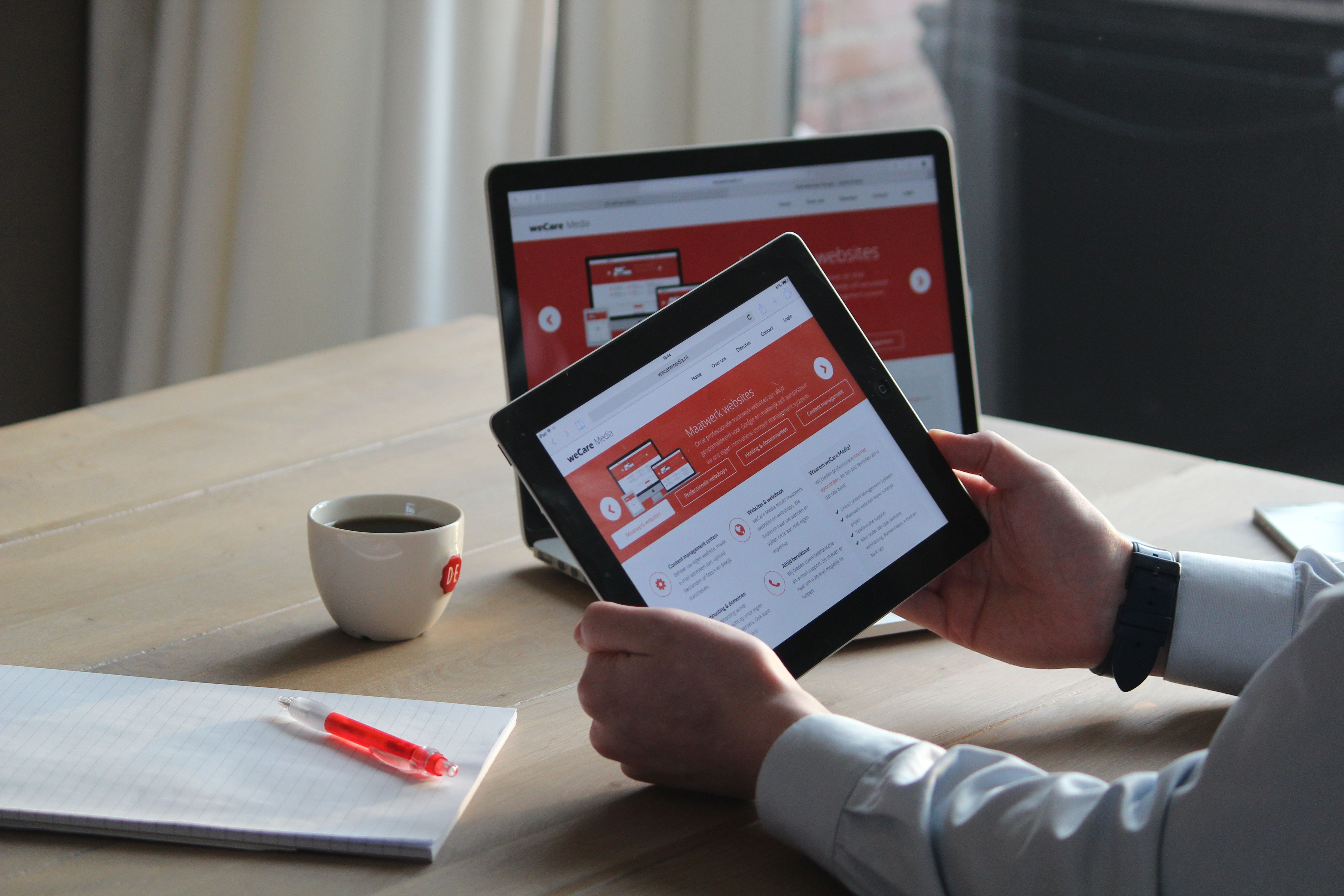
Hosting Migration Checklist for Better Performance and Uptime starts with a simple idea: moving a website to a better server setup can improve speed and reliability, but only if the migration is planned carefully. The biggest gains usually come from matching the hosting environment to the site’s real needs, then checking everything before and after the move.
This matters for blogs, business sites, WordPress builds, and ecommerce stores alike. A well-managed migration can reduce server response time, improve stability, and support better Core Web Vitals, but hosting is only one part of the picture. Themes, plugins, images, scripts, databases, and third-party services can all affect the final result.
What a hosting migration is really trying to fix
A hosting migration means moving a website from one hosting environment to another, such as from shared hosting to VPS hosting, cloud hosting, dedicated hosting, or managed hosting. The goal is not just to “move files”, but to improve how the site runs under real visitor traffic.
Some websites outgrow shared hosting because more pages are being served, more visitors arrive at once, or the database becomes busier. Others need better support, stronger security controls, or more predictable resources. For WordPress and WooCommerce sites, hosting also needs to handle PHP, caching, cart activity, background tasks, and plugin behaviour without slowing the site down.
The right choice depends on traffic levels, technical ability, budget, audience location, and how much control the site owner needs. Managed hosting can reduce admin work, while unmanaged VPS or dedicated hosting usually gives more control but also more responsibility. No single hosting type is automatically right for every website.
Build your migration checklist before you move
Start with a full inventory of the site. Note the CMS, active theme, plugins, custom code, email setup, DNS records, SSL/TLS certificate, cron jobs, media library size, and any special integrations such as payment gateways, CRM tools, or analytics tags. This helps you spot what must be preserved during the move.
Next, create a backup and verify that it can be restored. A backup is only useful if it can be recovered successfully, so keep an independent copy off-site rather than relying only on the host. For busy sites, use a staging environment first so you can test the migrated version without affecting visitors.
It also helps to measure the current site before migration. Check server response time, page load behaviour, uptime history, and key pages such as the homepage, product pages, checkout, and contact forms. If you need a structured review, a free website SEO audit can help identify technical issues that may affect performance and visibility before the move.
How hosting choice affects speed, stability, and scaling
Hosting affects how quickly the server can answer requests, how many users it can handle, and how resilient it is under load. Shared hosting splits resources between many sites, which can be cost-effective for smaller projects but less consistent during traffic spikes. VPS hosting offers isolated resources and more control. Cloud hosting can scale more flexibly, although configuration quality still matters. Dedicated hosting provides the most direct resource access, but it usually requires more technical management.
For WordPress hosting, look at PHP version support, memory limits, object caching options, database performance, and whether the host uses sensible caching defaults. For WooCommerce and other ecommerce sites, be careful with full-page caching: cart, checkout, account pages, and personalised content often need exclusions so visitors do not see outdated or incorrect pages.
Hosting alone will not fix slow code, oversized images, heavy JavaScript, or an overloaded database. If the site’s templates are inefficient or it loads many third-party scripts, the new host may only reveal the underlying issue more clearly. That is why migration should be treated as part of a wider performance review, not as the only solution.
Test performance properly before and after the move
Use a mix of lab tests and real-user data where possible. Lab tools simulate visits in controlled conditions, which is helpful for diagnosis, but the numbers can differ from what real visitors experience. Field data reflects actual use over time, so it may take longer to show the effect of changes. Performance results can also vary by location, network speed, device, cache state, and testing platform.
When comparing before and after, focus on meaningful pages and tasks rather than chasing a perfect score. Core Web Vitals are useful because they measure user experience signals: Largest Contentful Paint looks at when the main content becomes visible, Interaction to Next Paint reflects responsiveness to user actions, and Cumulative Layout Shift measures unexpected page movement. Improving these metrics can support usability, but it does not guarantee better rankings or sales.
Tools such as Lighthouse, WebPageTest, GTmetrix, or PageSpeed Insights can help identify bottlenecks, but they may not all show the same results. Prioritise issues that affect real visitors, especially homepage load, product browsing, checkout flow, and login areas. The Core Web Vitals guidance from web.dev is a useful reference for understanding these measures in more detail.
Checklist for a safer migration
Before DNS changes go live, confirm that the new server is ready. Check site files, database import, SSL certificate, email delivery, redirects, cache rules, and CDN settings. Verify that the temporary URL or hosts file test version matches the live site closely enough for realistic testing.
After the move, clear and rebuild caches carefully. Browser caching, page caching, object caching, database caching, server caching, and CDN caching all serve different purposes, and not every site should use every type in the same way. Poor caching rules can cause stale content, login issues, broken carts, or personalised pages showing the wrong data.
Useful checks include:
- Confirm DNS records point to the correct server.
- Test the homepage, important landing pages, forms, and checkout flow.
- Check image loading, font rendering, and JavaScript behaviour.
- Review server logs for errors or failed requests.
- Set up uptime monitoring and alerts.
- Test backups by restoring a copy at least occasionally.
Common migration mistakes and how to avoid them
One common mistake is changing host, theme, caching, and plugins all at once. If performance improves or worsens, you will not know why. Make changes one at a time and compare results.
Another mistake is assuming the CDN will solve everything. A CDN can reduce delivery distance for static assets such as images, stylesheets, and scripts, but it will not automatically fix slow database queries or poor application code. Likewise, a stronger server will not hide inefficient plugins or unoptimised media files.
For WordPress and ecommerce sites, avoid installing multiple overlapping optimisation plugins. Conflicting caching or minification settings can create layout issues, broken scripts, or checkout errors. If you manage a larger site or plan to scale, review hosting requirements and performance practices in the Backlink Works backlink building process guide only where broader site growth planning is relevant to your workflow.
If you are choosing a host from scratch or planning a future move, compare resource allocation, support, scalability, security, and technical control rather than focusing on the headline plan name alone. Free hosting can be suitable for tests or very small projects, but limits may apply to storage, bandwidth, support, branding, and domain control.
Conclusion
A hosting migration is most effective when it is treated as a performance project, not just a file transfer. Back up first, test in staging, review DNS and caching carefully, and monitor the site after launch. That approach gives you a better chance of improving speed, uptime, and user experience without disrupting the business.
Remember that hosting is only one part of website performance. Image size, scripts, database efficiency, server location, visitor location, and site architecture all influence the final result. For more wider SEO planning and site growth resources, Backlink Works also provides educational material that can support your overall optimisation process.
Frequently Asked Questions
How do I know if my website needs a hosting migration?
If your site is slow during normal traffic, has frequent downtime, or often hits resource limits, it may be time to review your hosting. Growth in visitors, products, plugins, or database activity can also make your current plan unsuitable.
Will moving to a faster host automatically improve my SEO?
Not automatically. Better hosting can help with speed and reliability, but search visibility also depends on content quality, technical setup, crawlability, internal linking, and user experience.
Should I use a CDN during migration?
A CDN can be helpful if your audience is spread across different regions or your site serves many static assets. However, it should be configured carefully and tested after migration so it does not conflict with caching or dynamic content.
What should I monitor after the migration?
Track uptime, server response time, key page load behaviour, error logs, checkout or form submissions, and any unusual spikes in resource use. Monitoring helps you catch issues early, even though it cannot prevent every outage.
- Sponsored Ad -





